The Banking Bridge API lets your own systems work with Banking Bridge without going through the console. By generating OAuth2 clients you can easily grant your applications the ability to poll data about bank accounts you've connected.
Base URL#
Connector clients#
A connector client belongs to one channel. Every route on this page automatically reads or acts on the channel affiliated with your client credentials at creation time.
Generating client credentials#
Create a connector client in the Banking Bridge console. You will need a role that can manage API access for the channel.
- Open the channel the client should read or act on.
- Select API Access in the channel's sidebar. The page lists the channel's existing access keys.
- Click Create Access Key, give the key a name, and choose its scopes.
- Copy the client ID and secret. The secret is only returned when the key is created, so store it somewhere safe straight away.
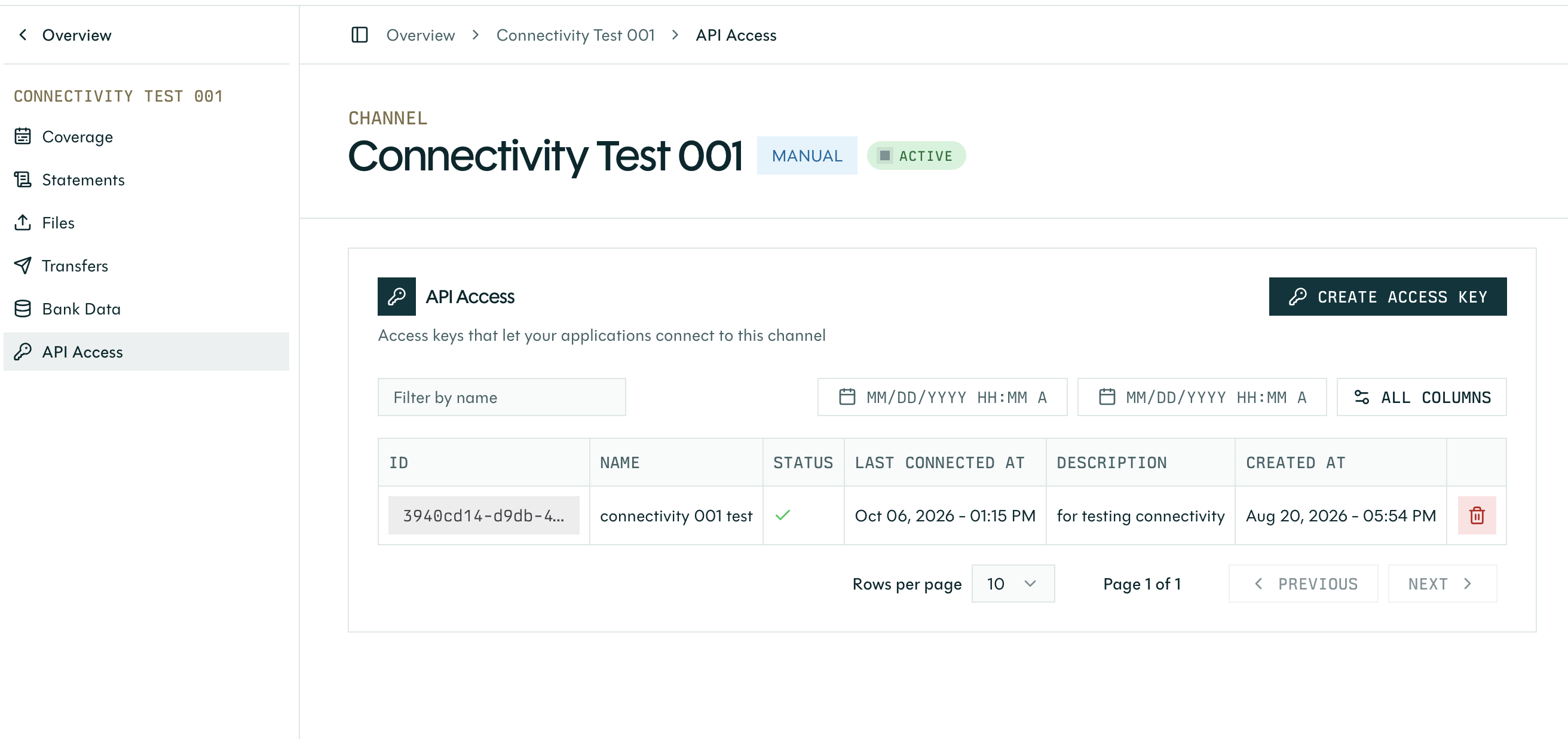
To revoke the credentials, delete the access key with the delete button at the end of its row.
Scopes#
Choose the client's scopes when you create it. A client created with no scopes gets bankingbridge:ReadBankStatement which can be used to read accounts, balances and transactions of connected bank accounts. Scopes can't be changed afterwards: create a new client instead.
We recommend adhering to the Principle of Least Privilege (PoLP) by granting only the scopes that your application actually needs.
All channels
| Scope | Lets your app |
|---|---|
bankingbridge:ReadBankStatement | Fetch data derived from bank statements such as accounts, balances and transactions. On Direct Banking channels you can also fetch data about the CAMT.053 statements themselves. |
Direct Banking channels
| Scope | Lets your app |
|---|---|
bankingbridge:ReadBankStatementFile | List ingested files that Banking Bridge received from the bank (such as CAMT.053). |
bankingbridge:DownloadBankStatementFile | Download ingested files that Banking Bridge received from the bank (such as CAMT.053). |
bankingbridge:ReadSubmission | List generated files that Banking Bridge sent to the bank (such as PAIN.001). |
bankingbridge:DownloadBankSubmissionFile | Download generated files that Banking Bridge sent to the bank (such as PAIN.001). |
bankingbridge:UploadFile | Directly upload ISO20022 files you wish to ingest. |
bankingbridge:ReadUploadedFile | Get info on the processing status of files that were directly uploaded. |
Open Banking channels
| Scope | Lets your app |
|---|---|
bankingbridge:ReadOpenBankingConnection | View the status of Open Banking connections. |
bankingbridge:WriteOpenBankingConnection | Create, reconnect and delete connections with Open Banking aggregators. |
Get an access token#
Exchange client id and secret you created earlier for a bearer token with the OAuth2 client credentials grant. The resource parameter names Banking Bridge (app://bbs) followed by the scopes you want in the token, separated by spaces.
Making your first authenticated request#
Send the token obtained above as a bearer token on every request to the API:
Pagination#
List endpoints return a page of results in a cursor:
Set pageSize on the first request. While hasMore is true, pass the next value as cursor to get the following page. When cursor is set, every other query parameter is ignored: the cursor already carries the original filters and page size.
Postings work differently, because they are meant to be polled. Every page returns a next cursor, including the last page and empty pages. Store it and pass it back later to get only the postings stored since then. When hasMore is false, wait before resuming from next.
Filtering#
Most list endpoints take a query parameter: a URL-encoded JSON filter. For example, to fetch only the postings imported after a point in time:
On postings, the field you can filter on is importedAt, with $match, $gt, $gte, $lt or $lte.
Syncing new data#
Paginating and syncing are two different jobs. A cursor walks through one result set; syncing means coming back later for what changed since.
Postings are built to be synced from a cursor:
- On your first sync, list postings, optionally with an
importedAtfilter to choose where to start, and walk every page. - Store the
nextcursor of the last page, even when that page is empty. - On each later sync, resume from the stored cursor. You receive only the postings stored since.
A posting that changes after it was stored keeps its position, so resuming from a cursor doesn't return it again. Its lastUpdatedAt is set when it changes. To pick up changes, and the rare posting that a cursor can miss (see Bank data), periodically re-read from an older cursor and compare by id.
Latest balances are a snapshot, not a feed: walk every page from the start on each pass, and don't keep the cursor between passes.
Errors#
Failed requests return a JSON body with a machine-readable code and a message:
Routes by channel type#
A channel is either a Direct Banking channel, which exchanges ISO 20022 files with the bank, or an Open Banking channel, which fetches bank data through one of our open banking aggregator partners.
| Prefix | Serves | Covers |
|---|---|---|
/connectors/ | Every channel | Bank data: latest balances and postings |
/connectors/direct-banking/ | Direct Banking channels (EBICS, Manual) | Statements, bank files and uploads |
/connectors/open-banking/ | Open Banking channels | Users and connections |
The endpoint reference is grouped the same way.
Bank data (for all channels)#
Two routes serve bank data on every channel type: the latest balances of every account and postings. On a Direct Banking channel, the data is read from the bank's statement files. On an Open Banking channel, it is synced from our partner Open Banking aggregator.
The latest balances give the current position of every account in one pass. Each account comes with its most recent balances, and an account with no balance yet is listed with an empty balances list. On a Direct Banking channel, the balances come from the statement whose coverage period ends latest. On an Open Banking channel, they are the balances on the most recent balance date.
Postings are returned oldest first and appear after a short settling delay (two minutes by default). This lets postings stored at the same time become visible in order. Rarely, a posting can take longer than that delay to store, and a cursor that has already moved past its position will miss it. If you need every posting, periodically re-read from an older cursor and deduplicate by id. Cursors issued by releases before this ordering was introduced are rejected: list again without a cursor.
Identifying accounts#
Balances and postings name their account by accountReference. This is the key the source files the account under: the account ID on the bank statement for Direct Banking, and the provider's own account ID for Open Banking. On an Open Banking channel, the reference changes when the connection is re-linked, so the same bank account can come back under a new reference.
Pending and posted entries#
Open Banking providers report a settled payment as a new entry rather than updating the pending one. Banking Bridge keeps both, so both appear in postings. The posted entry's linkedReference holds the pending entry's entryReference:
Both entries describe the same payment. To avoid counting it twice, skip any entry whose entryReference is named in another entry's linkedReference.
For Direct Banking channels#
These routes serve EBICS and Manual channels.
Statements and bank files#
Statements are the account statements Banking Bridge has imported from official CAMT.053 statement files.
- Incoming files are files received from the bank, or uploaded, once Banking Bridge has processed them, successfully or not. Download one to get its original content.
- Outgoing files are files Banking Bridge generated for the channel and submitted for transmission to the bank. Download one to get the file as it was generated.
Uploading CAMT.053 files#
To send CAMT.053 statement files to the channel yourself, upload them as a multipart form, one file field per file, up to 10 at a time.
The response reports each file separately, with status OK or ERROR, so check every entry rather than only the HTTP status. An accepted file is queued for processing: get it by its id to follow it using the incoming file endpoint.
For Open Banking channels#
Setup connections to new bank accounts by acquiring a consent link URL, which allows you to login to your bank and connect Banking-Bridge directly.
To connect a bank from your own product, create an Open Banking user with the bank's country and an idempotencyKey. Clicking through the consent flow provided by the linkUrl on one of our Open Banking providers will grant Banking Bridge read access to your bank account.
The flow involves three objects, each with its own ID:
- User (
openBankingUserId): your end user's identity at the aggregator. It stays the same across every link and reconnect made for them. - Attempt (
openBankingConnectionAttemptId): one run of the consent flow. Itsstatusispending, thencompletedorexited. - Connection: the access to a bank created when an attempt completes. Its
openBankingConnectionAttemptIdnames the attempt that last established it.
Creating a user returns 202 Accepted with the user's first attempt, not with a connection:
- Send your end user to the attempt's
linkUrlto complete the consent flow with their bank. - When they finish or abandon the flow, the aggregator redirects them to your
clientRedirectUrl. - Once the connection is established, Banking Bridge syncs its accounts. They appear in the latest balances of every account.
If the create request fails or times out, retry it with the same idempotencyKey. A repeated request with the same key returns the attempt that was already created, rather than starting a new one.
When a connection is pending_disconnection, disconnected or in error, reconnect it to start a new consent flow.